
11. What your customers see
Knowing your customers’ side helps you explain it at the counter.
Getting the card
Section titled “Getting the card”-
The customer opens the link (from the join form, a QR code, an email or SMS, or your website).
-
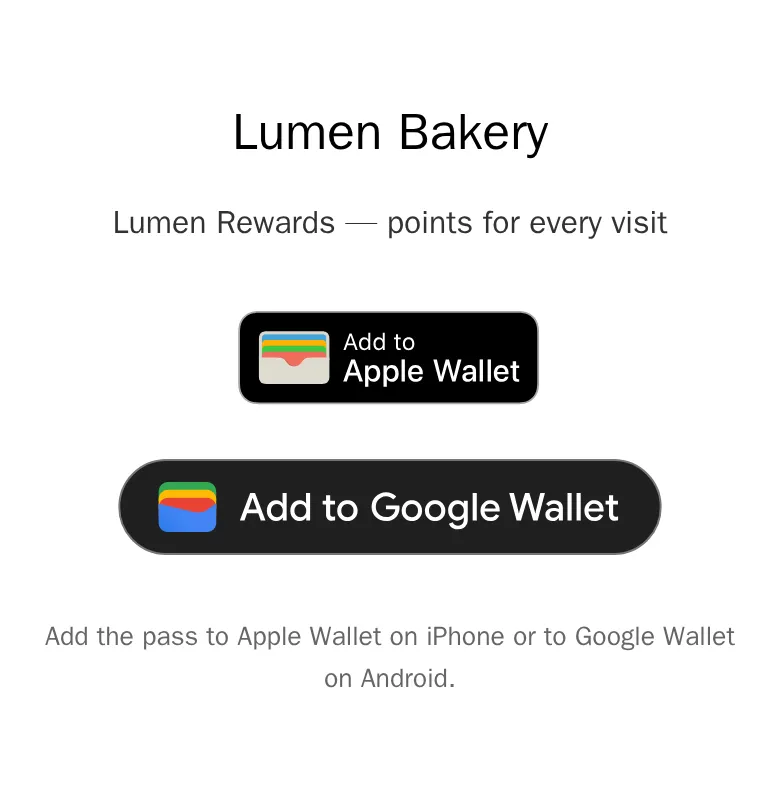
The card page shows your name and the Add to Apple Wallet and Add to Google Wallet buttons — the one for their phone comes first.
-
One tap opens their wallet with the card, ready to add. That’s it — no app, no account.
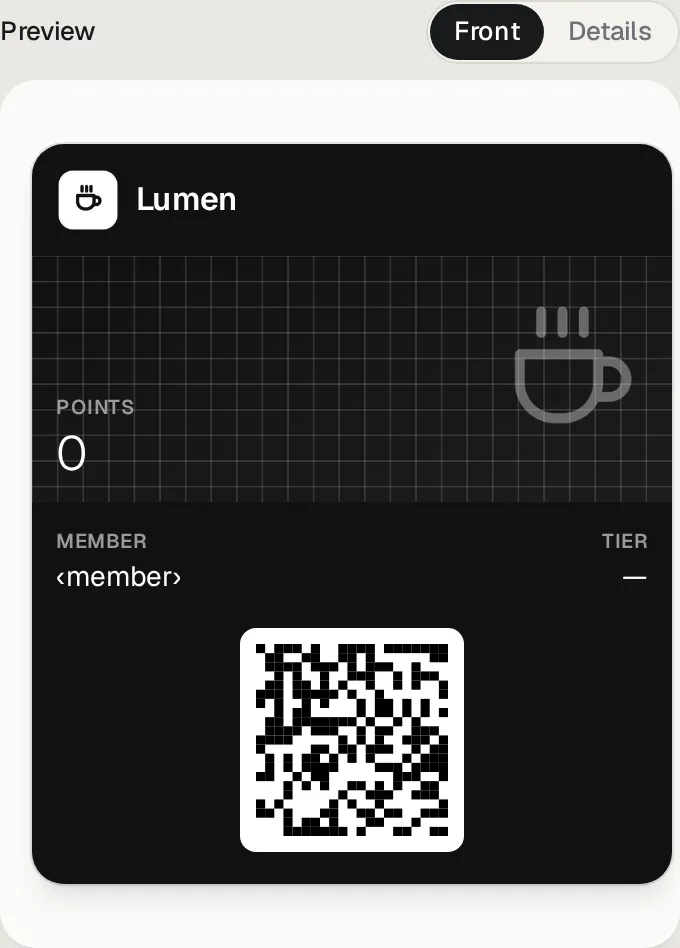
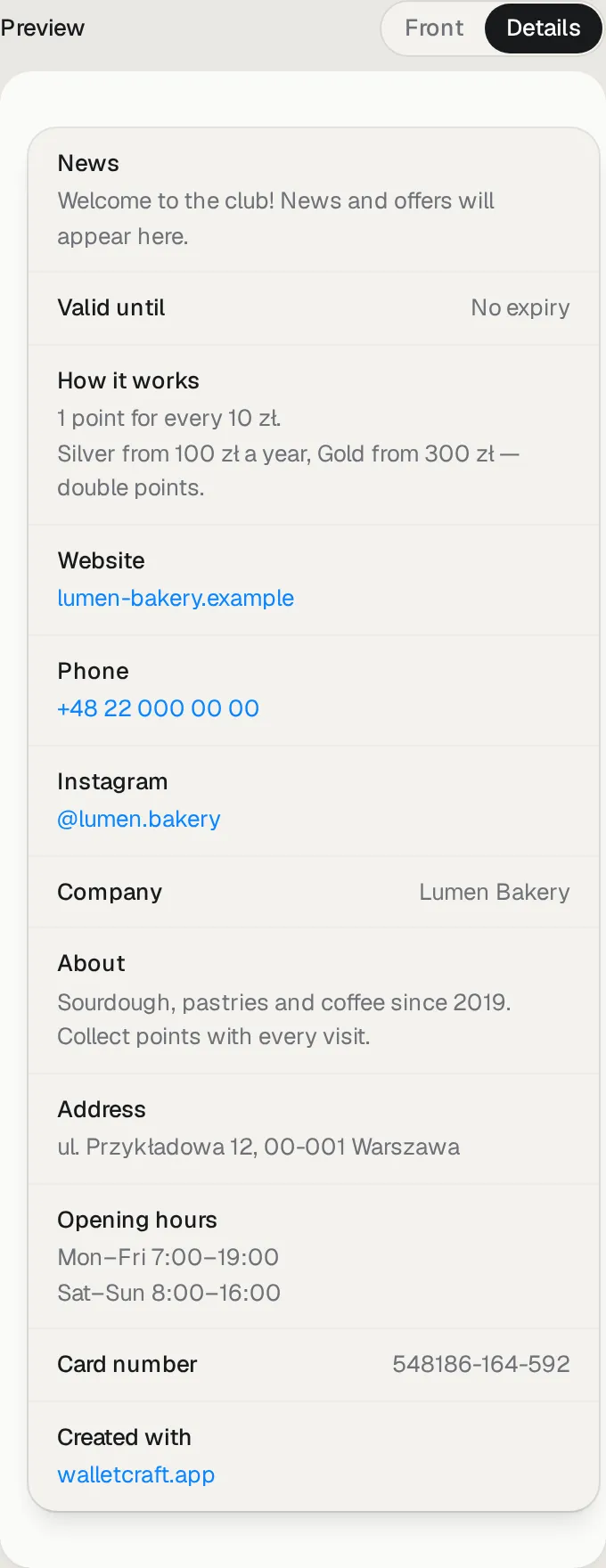
The card looks like your template, with their own values — the front, and the back (Details) with your contacts, links and the latest message:
Updates and notifications
Section titled “Updates and notifications”- When something changes — points after a purchase, a new level, a message, your new opening hours — the card on the phone updates by itself, usually within a minute.
- Fields with a change message show a notification on the lock screen (“Balance: 120 points”), and so do messages.
- The back of the card (the Details) has your contacts, links and the latest message.
A lost card or a new phone
Section titled “A lost card or a new phone”The card stays theirs. On a new iPhone or Android phone they can get it back themselves:
-
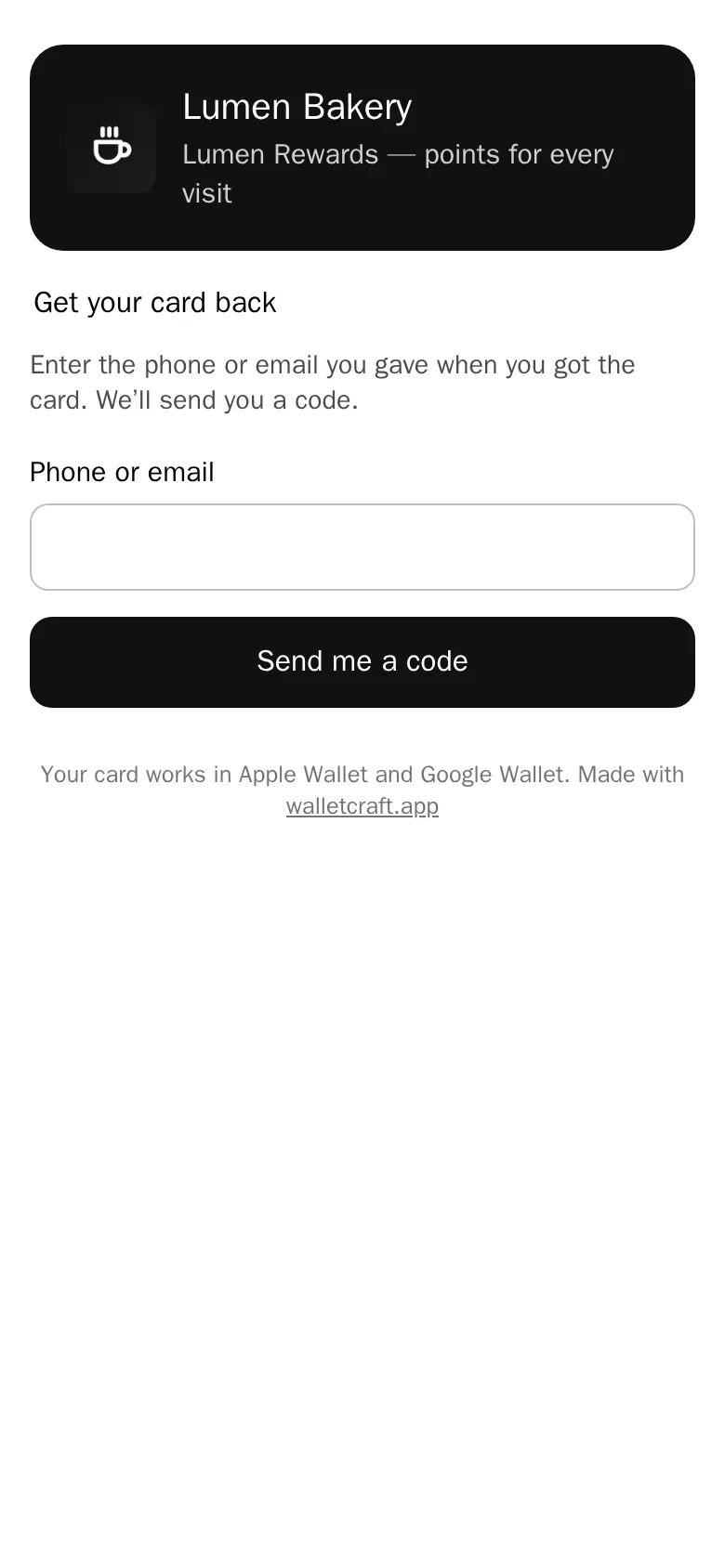
On your join page (the same link or QR code) they tap Lost your card? Get it back — also shown when they try to sign up again.
-
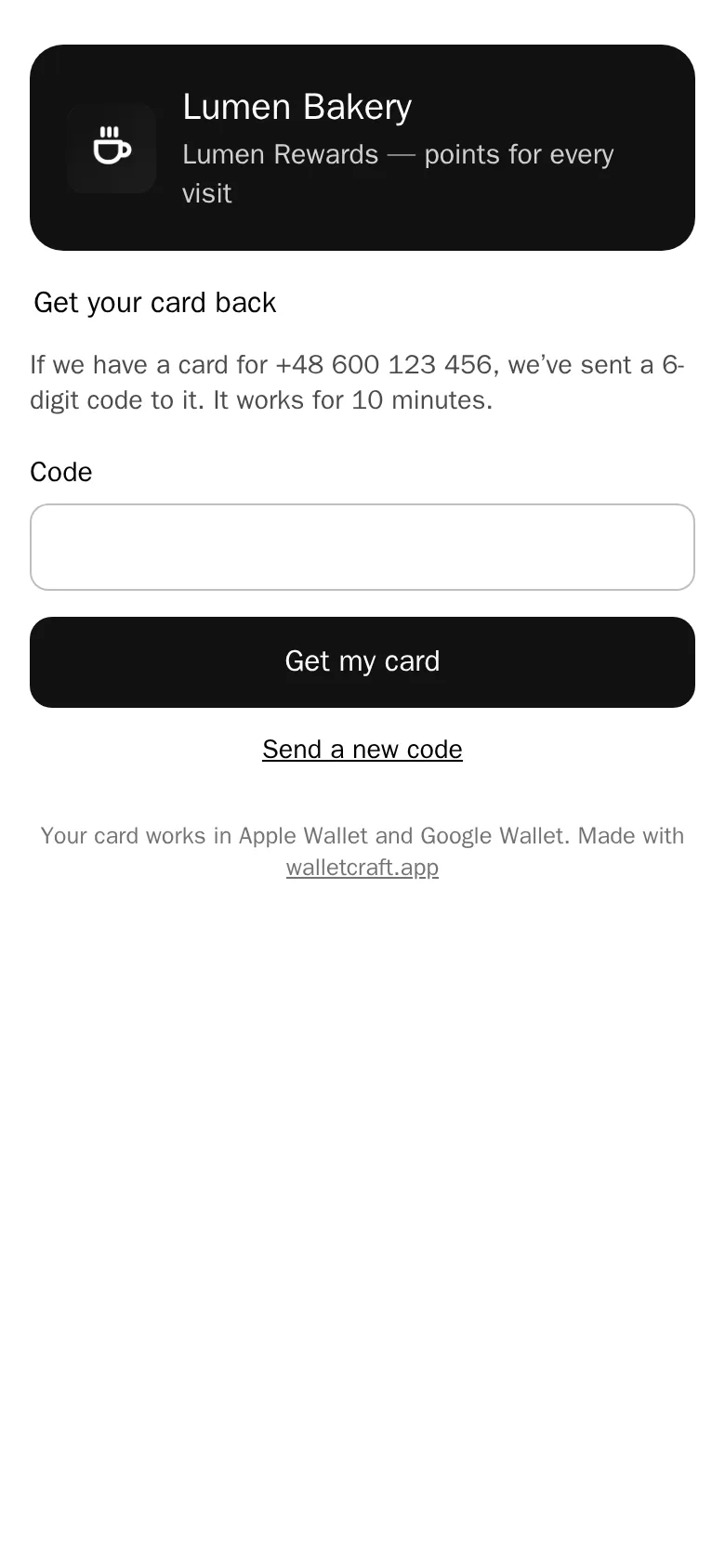
They enter the phone or email they gave you and get a 6-digit code by SMS or email. It works for 10 minutes.
-
After the code, the card page opens: the same card with the same points, stamps and level.
Your team can also send the card again from the customer’s page (Send). Recovery by code works when the join link is on and email or SMS sending is set up for your account.