
8. WalletCraft Desk
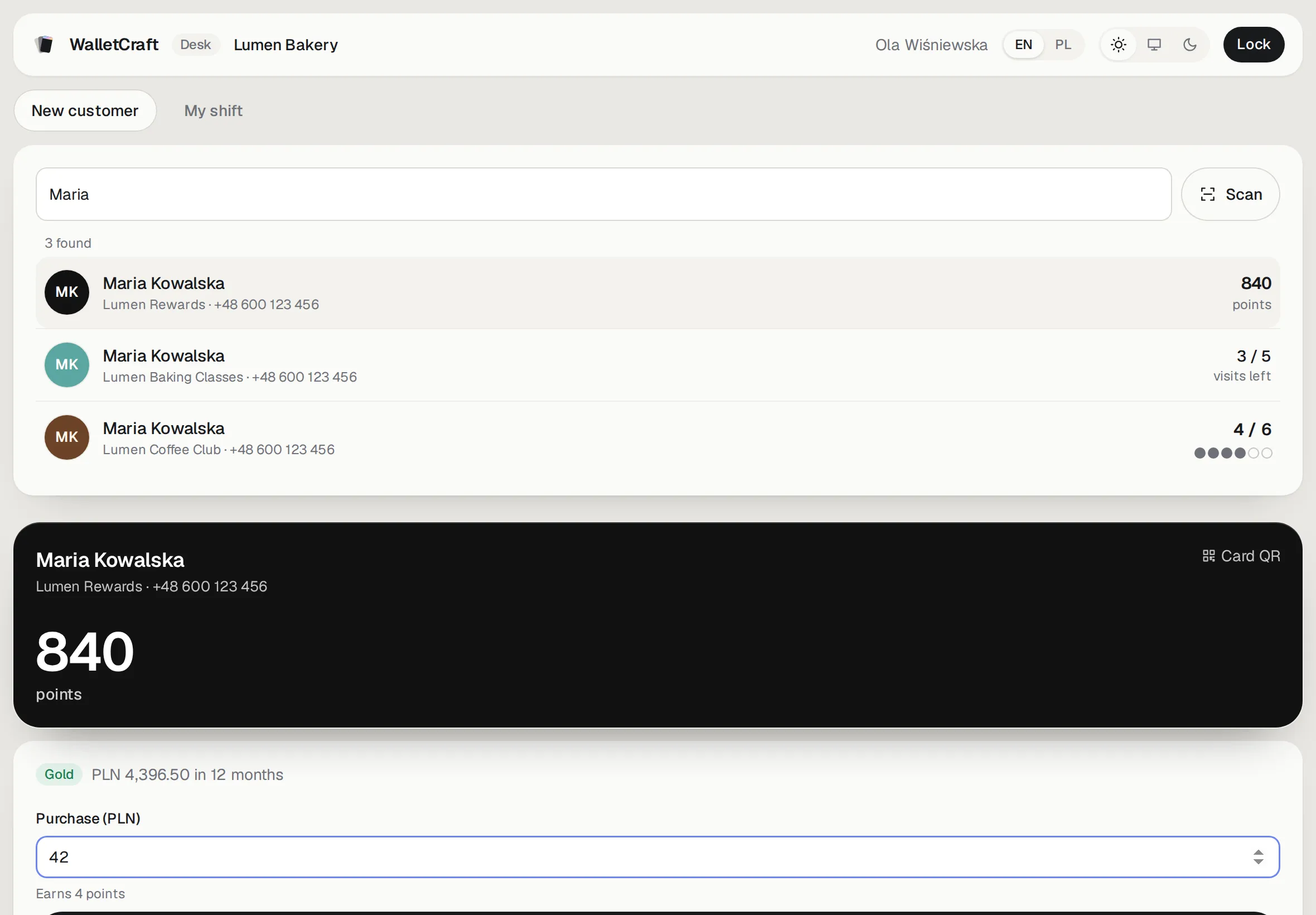
WalletCraft Desk is the counter on its own, made for the till: a tablet or phone at desk.walletcraft.app that does only the counter — find a card, add a purchase, spend points, record a visit, sell a pack, give a new customer a card. It speaks English and Polish (the EN / PL switch at the top), keeps the screen on and opens in a second.
It does the same as Counter in the console (7. Loyalty → The counter) — the console page stays, and Open WalletCraft Desk on it opens the app.
There are two ways to use it:
| How | For |
|---|---|
| A paired till | A shared tablet at one location. Each person taps their name and enters their own 4–6 digit PIN. |
| Your own sign-in | A manager on their own phone: the same email and password (and two-factor code) as the console. |
Install it on the tablet
Section titled “Install it on the tablet”Open desk.walletcraft.app in Safari (iPad, iPhone) or Chrome (Android) and add it to the home screen — Safari: Share → Add to Home Screen; Chrome: ⋮ → Add to Home screen (or Install app). It then opens full screen like an app, as WalletCraft Desk.
Pair a till
Section titled “Pair a till”A paired till belongs to one location (2. Company profile → Locations): everything recorded on it happens there. Managers and above pair and revoke tills.
-
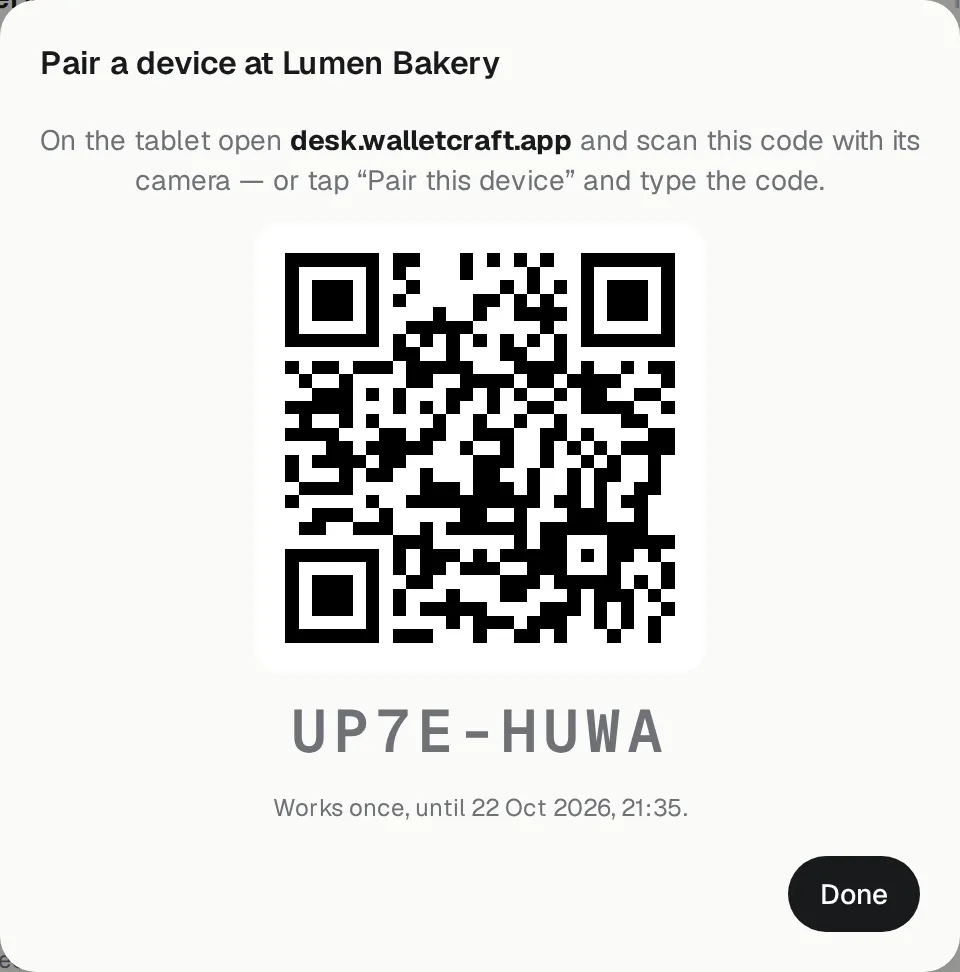
In the console open Locations and, at the location, WalletCraft Desk devices → Add a device. Give it a name you’ll recognise (“Front counter”, “iPad by the door”) and press Get a code.
-
On the tablet scan the QR with the camera — or open Desk, tap Pair this device as a till and type the code. The code works once, for 10 minutes.
-
The tablet now shows who works at this location.
The list of devices shows when each was last used. Revoke one that was lost or replaced: it stops at once, including a shift that is open on it.
Your PIN
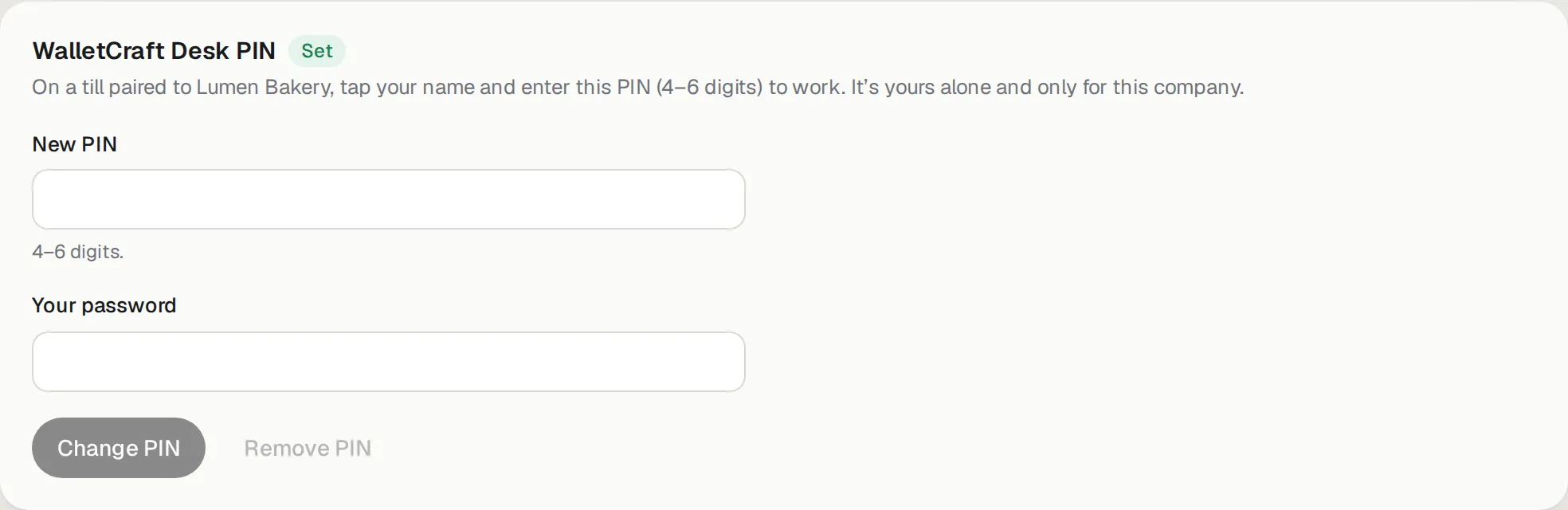
Section titled “Your PIN”Everyone who works at the till sets their own WalletCraft Desk PIN in the console: Your account → WalletCraft Desk PIN, 4–6 digits, confirmed with your password. It’s yours alone and only for this company. PINs are set only in the console, never on the till.
A PIN opens the counter and nothing else, whatever your role: your team, API keys, customer exports and your other companies all need the console, with your password.
A shift on the till
Section titled “A shift on the till”-
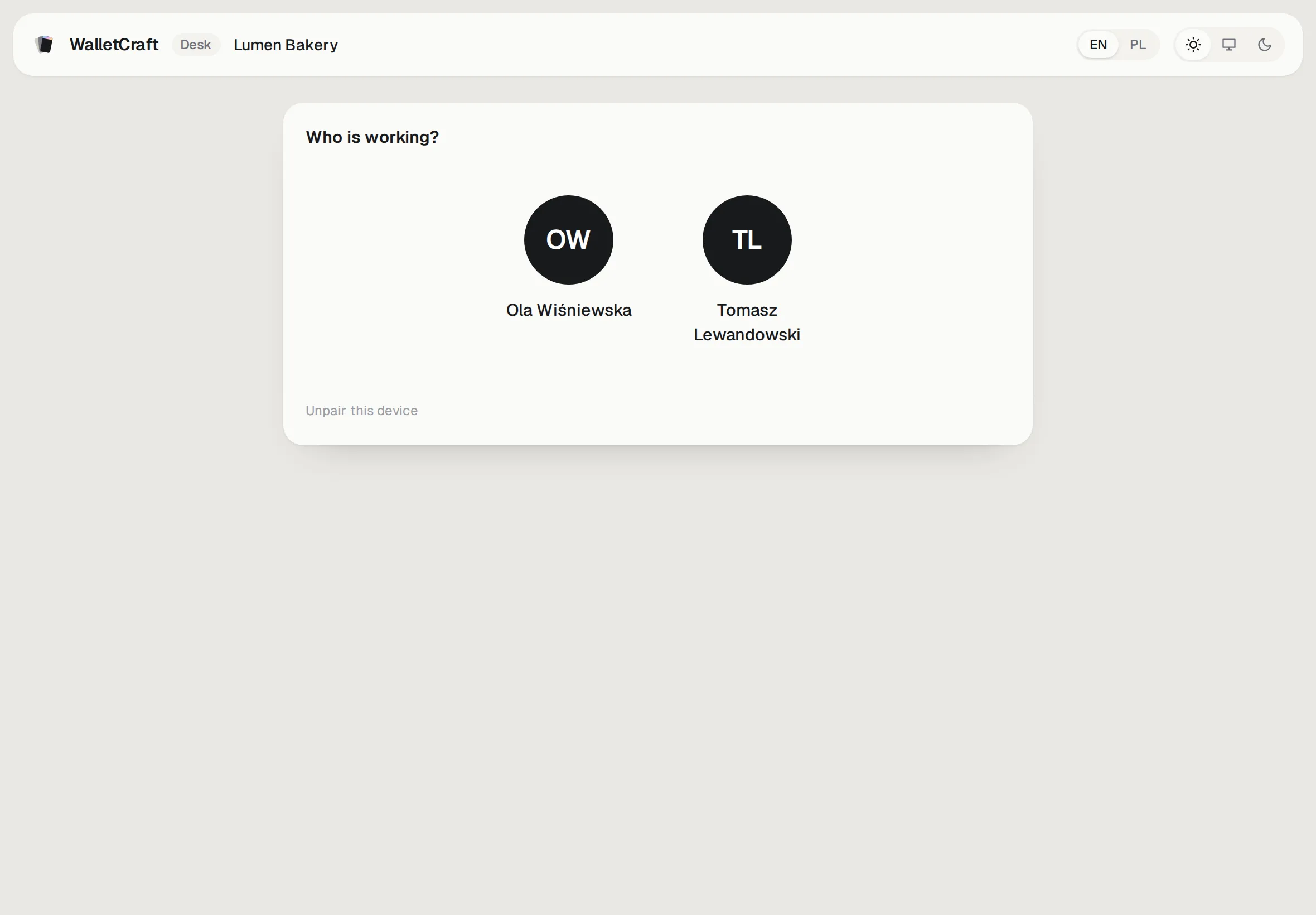
Tap your name (or your initials) under Who is working? — the list shows the people of this location who have a PIN.
-
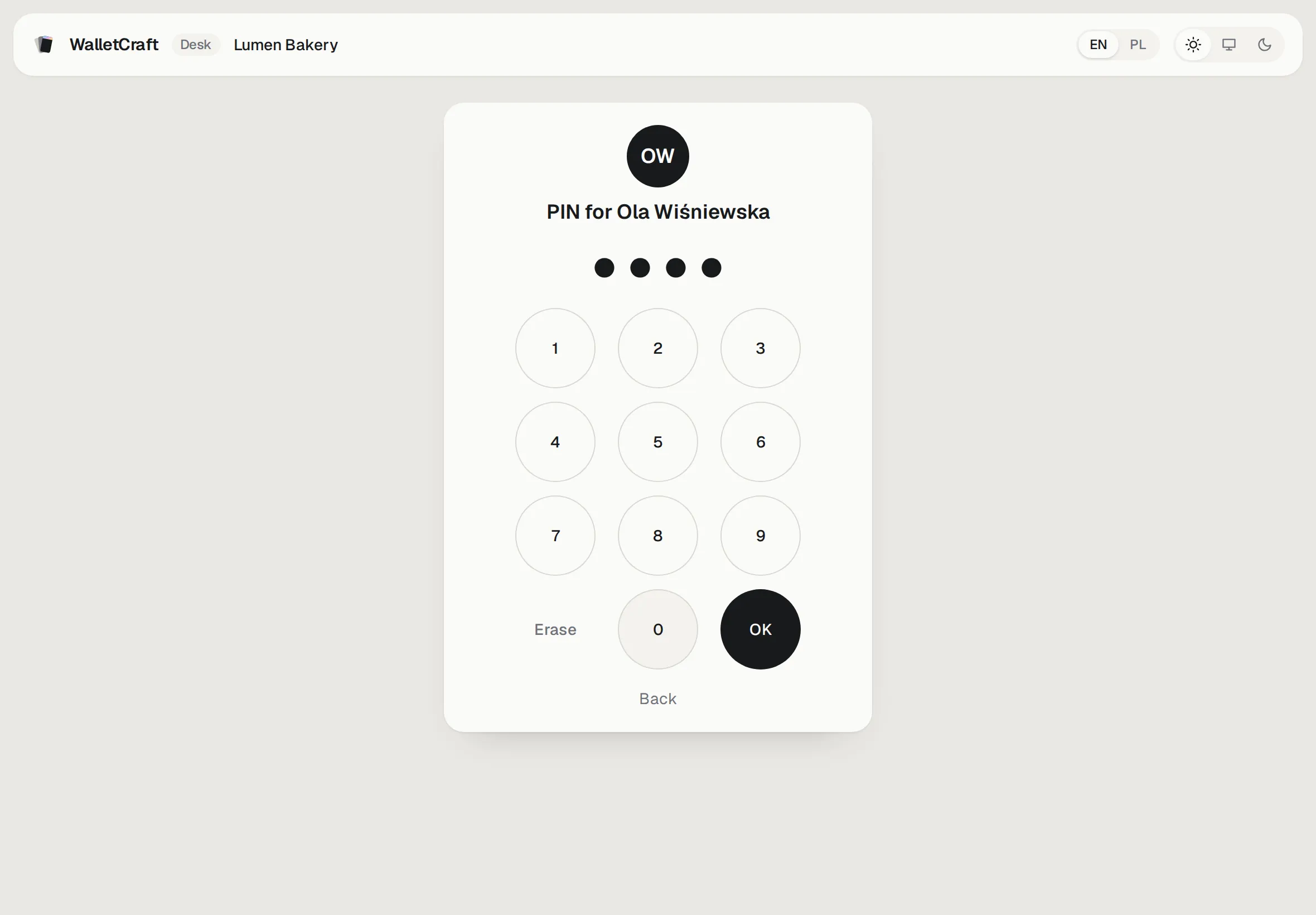
Enter your PIN and press OK.
-
Work as at the counter: everything you record shows your name and this location.
-
Leaving the till? Press Lock. Desk also locks itself after 5 minutes without a touch, and a shift ends after 12 hours at the latest.
Five wrong PINs in a row lock that person’s PIN for 15 minutes. Each further lock lasts four times longer (an hour, four hours…), at most a day; a correct PIN starts the count again.
After each operation
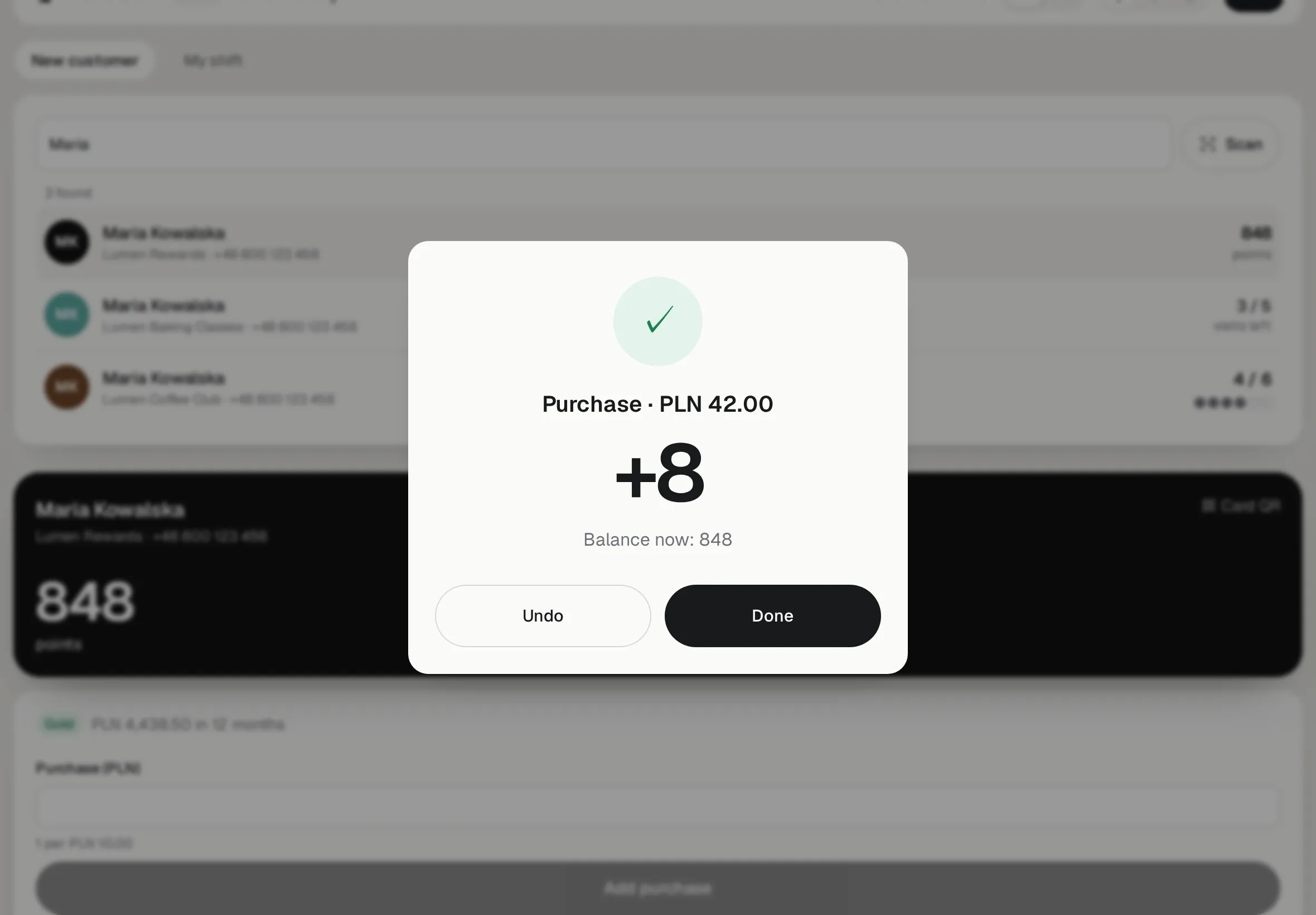
Section titled “After each operation”Desk shows what was recorded and the card’s new balance in big type, with Undo for a mistake. The line at the top shows how long the screen stays (6 seconds); a tap outside it closes it sooner.
Barcode scanners
Section titled “Barcode scanners”A USB or Bluetooth barcode scanner works without any setup (it types like a keyboard): scan the customer’s card while the search box or nothing is selected, and the card opens. The Scan button uses the tablet’s camera instead.
A new customer
Section titled “A new customer”New customer gives someone a card right at the till — for people who don’t want to fill in a form on their phone.
-
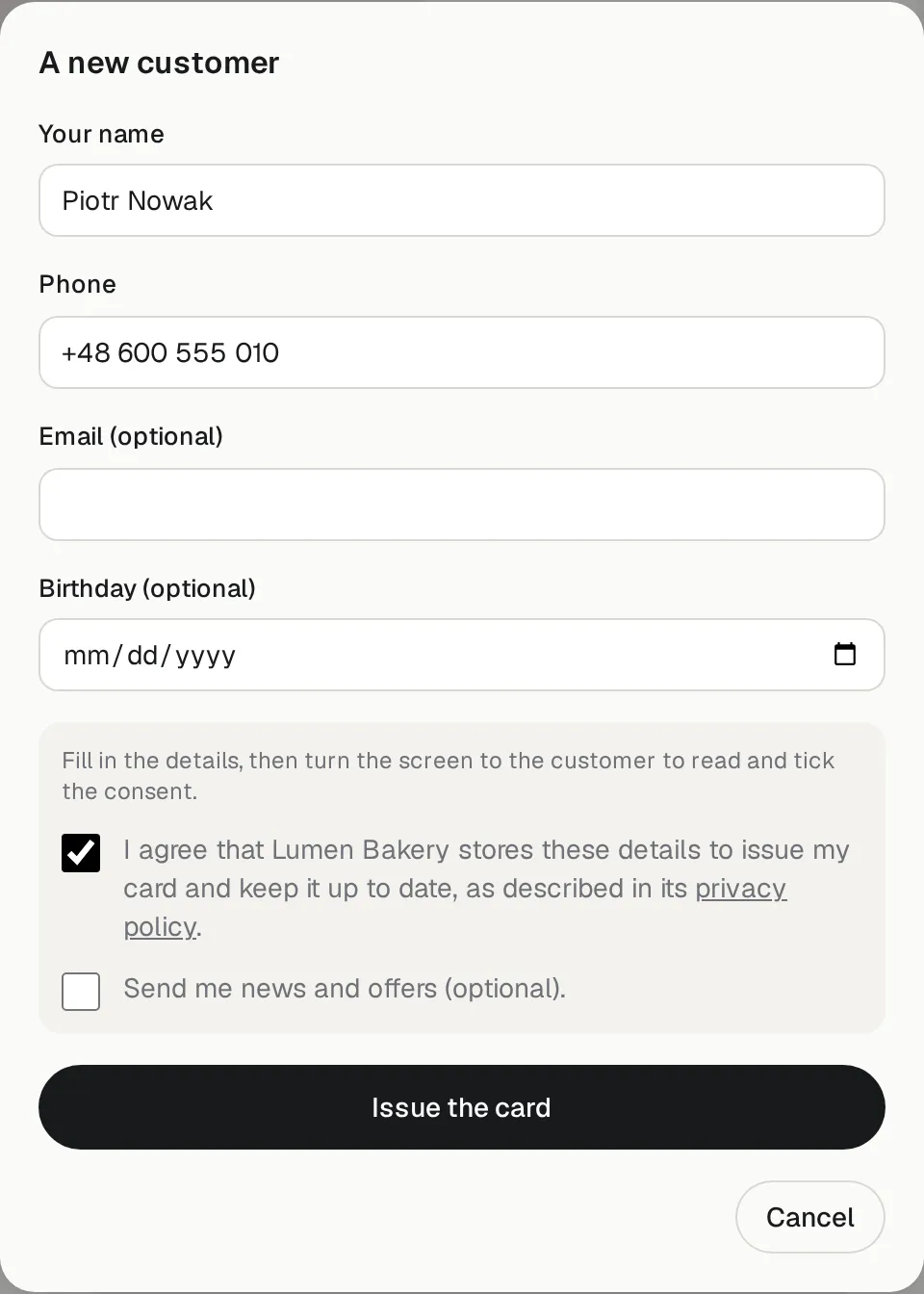
Press New customer. Desk asks what the card’s join form asks (4. Issuing cards → Join link): the questions, phone, email, birthday. Fill them in.
-
Turn the screen to the customer: they read the consent and tick it themselves — and, if they want, news and offers.
-
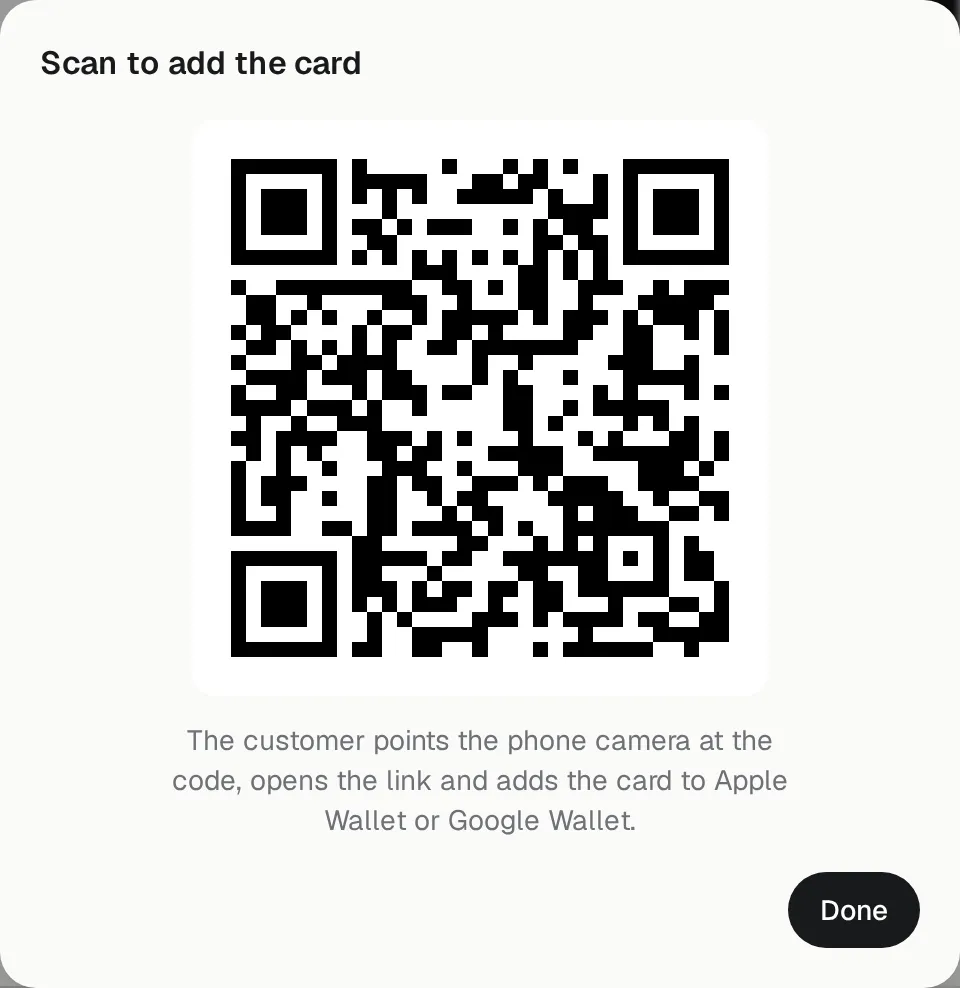
Press Issue the card. Its QR code appears: the customer points the phone camera at it and adds the card to Apple Wallet or Google Wallet. The card also opens at the counter.
The card is issued at this location. If this phone already has the card, Desk shows the existing one instead of a second. New customer works for cards whose join form is on, and needs your privacy policy link in the company profile.
My shift
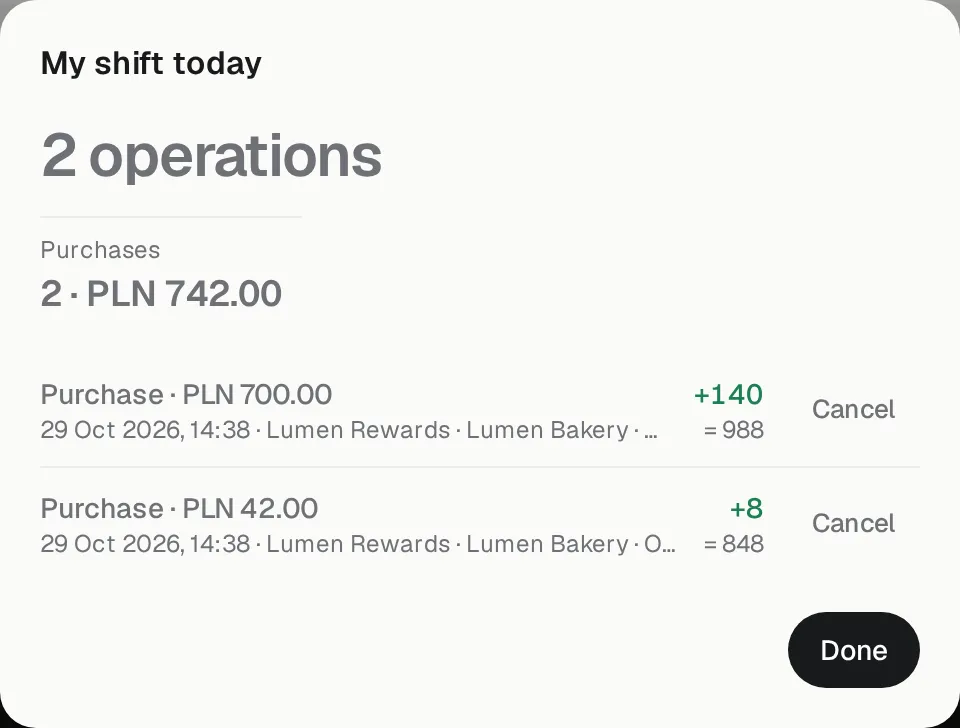
Section titled “My shift”My shift lists today’s operations with the totals — purchases and their sum, points spent, rewards, visits, packs sold. Staff see their own; managers and above see everyone’s at this location. A mistake can be cancelled right there.
Limits for staff
Section titled “Limits for staff”So that a till is safe to share, staff accounts have limits — in Desk and on the console’s Counter alike:
-
Cancel: staff cancel only their own operation, within 10 minutes. Anything older or someone else’s — a manager.
-
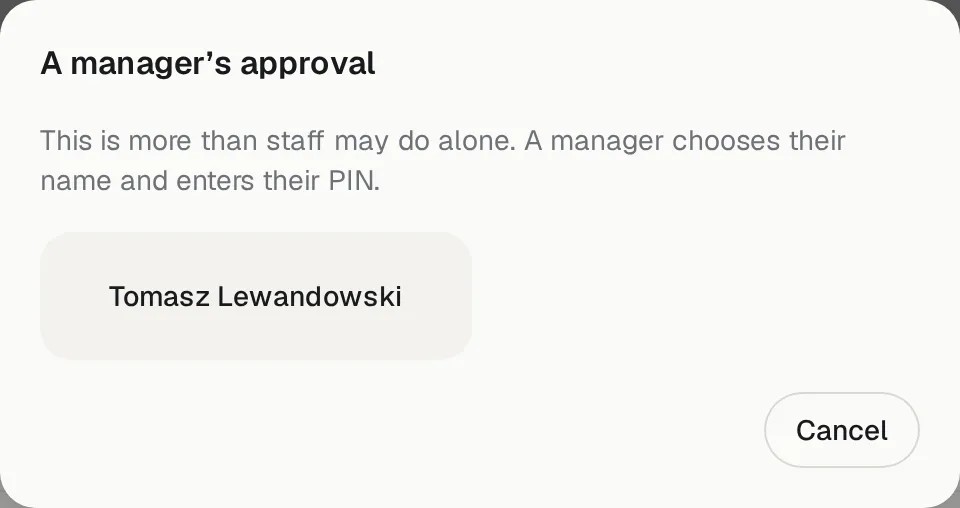
Spending many points: in Team → Staff limits set how many points staff may spend (or correct) at once. Above it, a manager approves on the spot: they tap their name and enter their own PIN. The history shows who approved. Editing a card’s points in the console counts too: above the limit, staff use the counter.
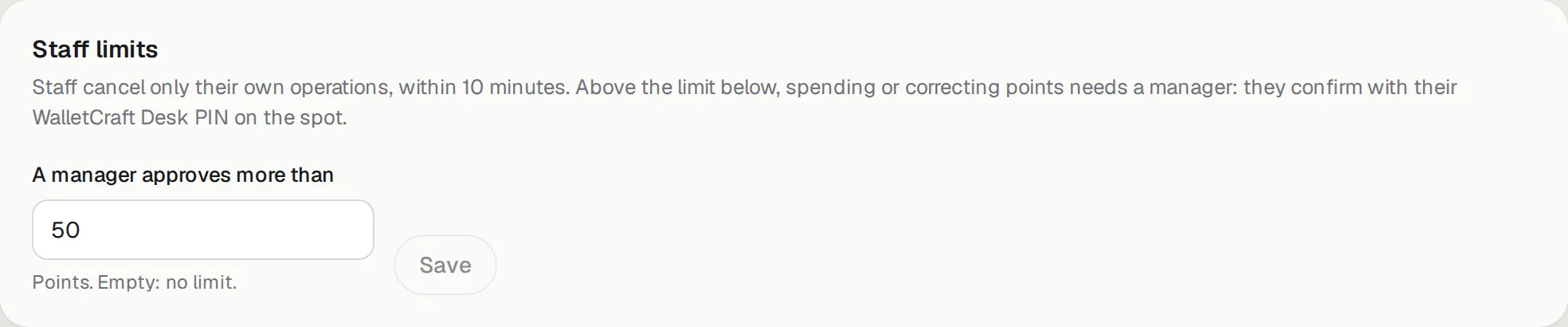
Stamp rewards, visits and pack sales have no limit. Leave the field empty for no limit at all.
Questions
Section titled “Questions”Nobody appears under Who is working? Nobody who works at this location has a PIN yet. Each person sets one in Your account; check in Team that they work at this location.
The till says it was revoked or unpaired. Someone revoked it in Locations, or Unpair this device was pressed. Pair it again with a new code.
Someone left the company. Team → Turn off access: their PIN stops working at once on every till.