
7. Loyalty
A loyalty program turns a card into a reward card. Choose the mechanic per template:
| Mechanic | How it works | Example |
|---|---|---|
| Points | Points for every amount spent; customers spend them on rewards. | 1 point per 10 zł, 100 points = a drink |
| Stamps | One stamp per purchase; a reward on the last stamp, then it starts again. | ☕ 6th coffee free |
| Levels | Silver, Gold… by what a customer spent in the last 12 months. Works with both. | Gold: double points |
Different templates can use different mechanics — for example a points card for everyone and a coffee club stamp card.
Set up a program
Section titled “Set up a program”-
Loyalty needs a Store card template. In its Fields, mark the field that shows the balance with the role Points / balance and save the template (Templates → Fields).
-
In the template, find Loyalty program and choose the mechanic and the currency your prices are in.
-
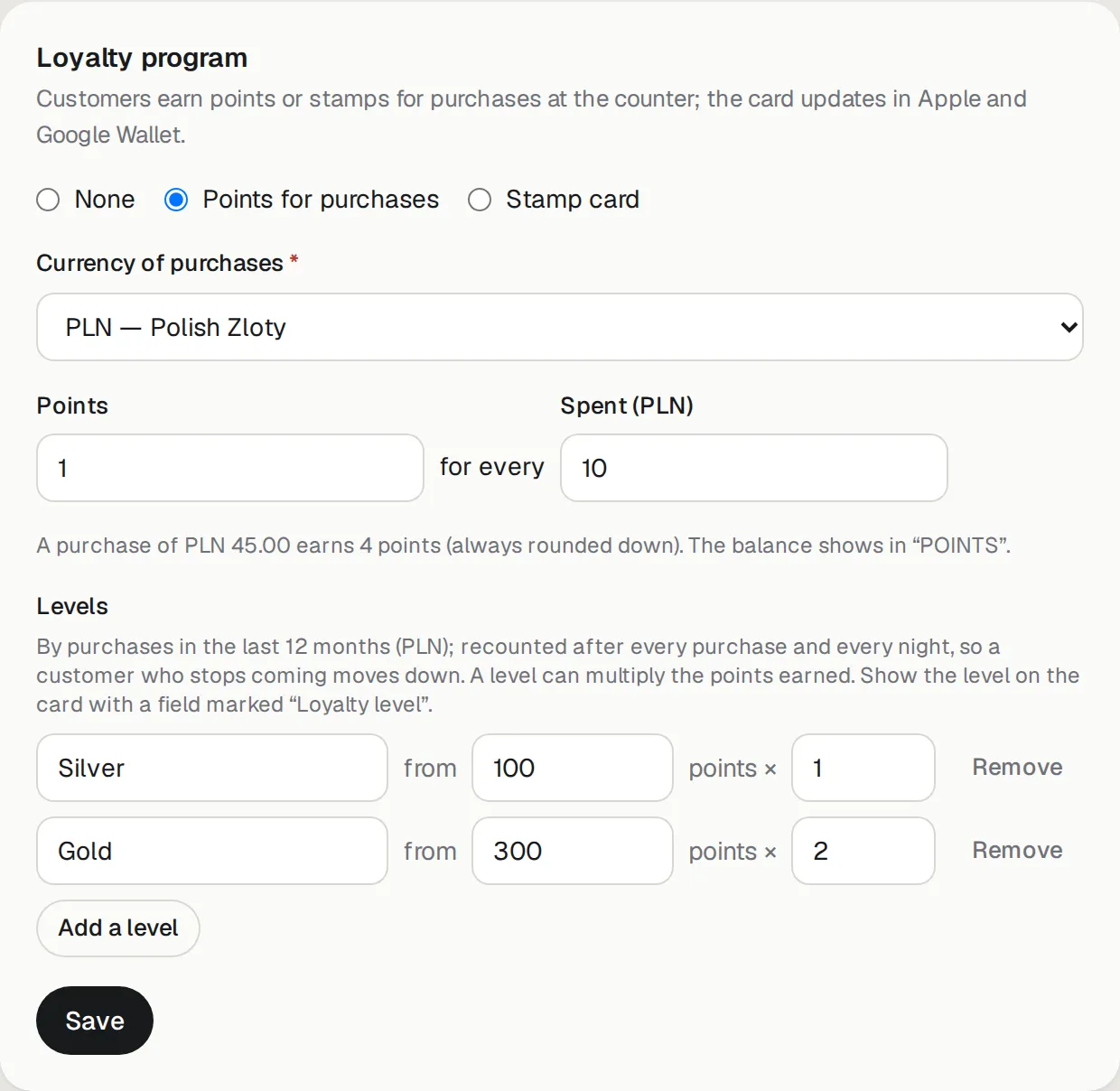
Points: how many points for how much spent. Points are always rounded down: with 1 point per 10 zł a 45 zł purchase earns 4 points.
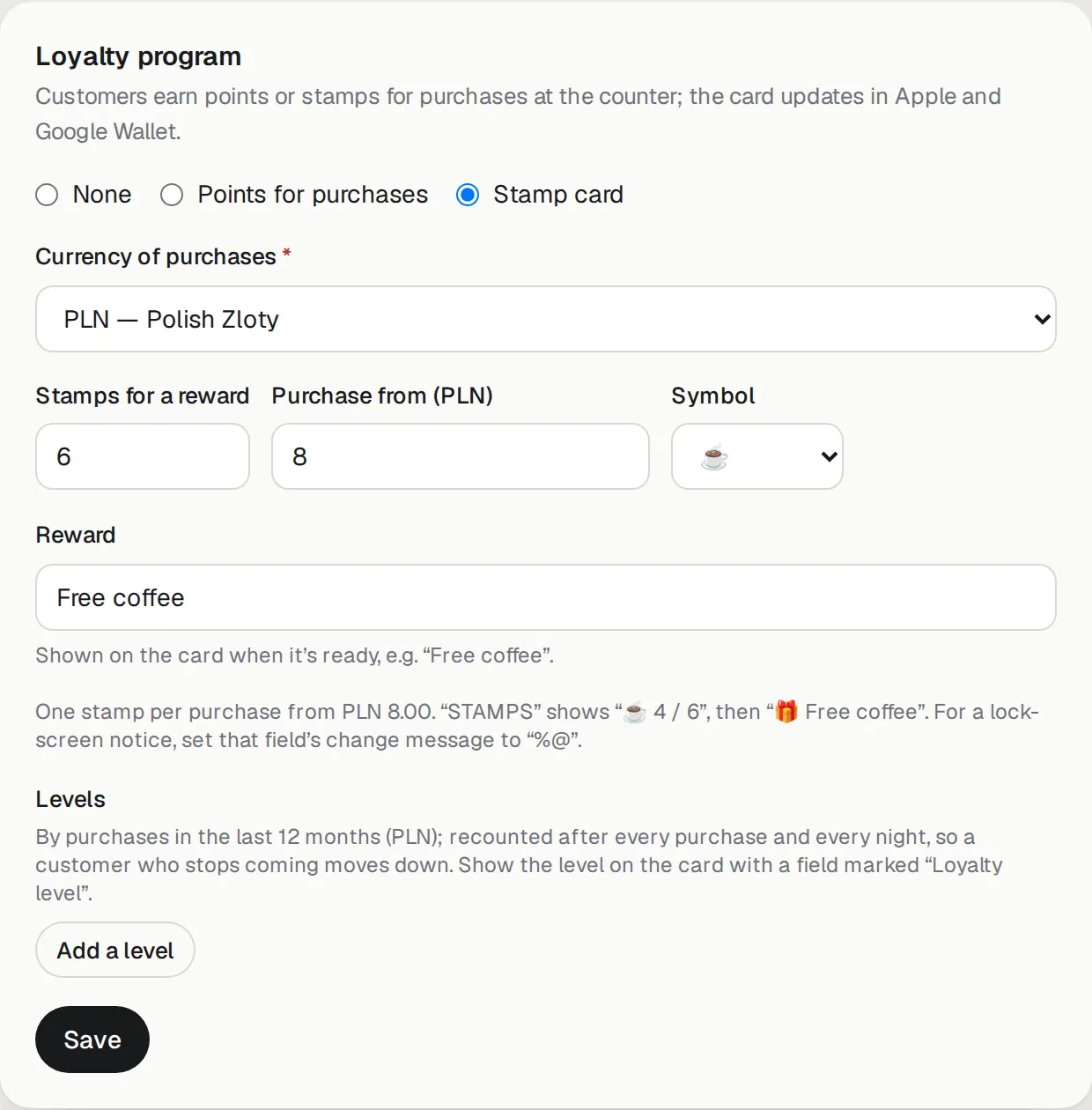
Stamps: how many stamps for a reward, the minimum purchase for a stamp (0 = every purchase), the reward text (“Free coffee”) and an optional symbol.
-
Optional Levels: a name and the yearly spend from which it applies, and for points a multiplier (Gold ×2 = double points). To show the level on the card, add a field with the role Loyalty level and a default value such as “—”.
-
Press Save. Every card of the template updates.
On the card, points show as a number; stamps as ☕ 4 / 6, and when the reward is ready as 🎁 Free coffee.
For a lock-screen notification on every change, give the balance field a change message (for stamps simply %@).
The counter
Section titled “The counter”Counter in the menu is made for the till — on a computer, tablet or phone. Staff accounts can use it.
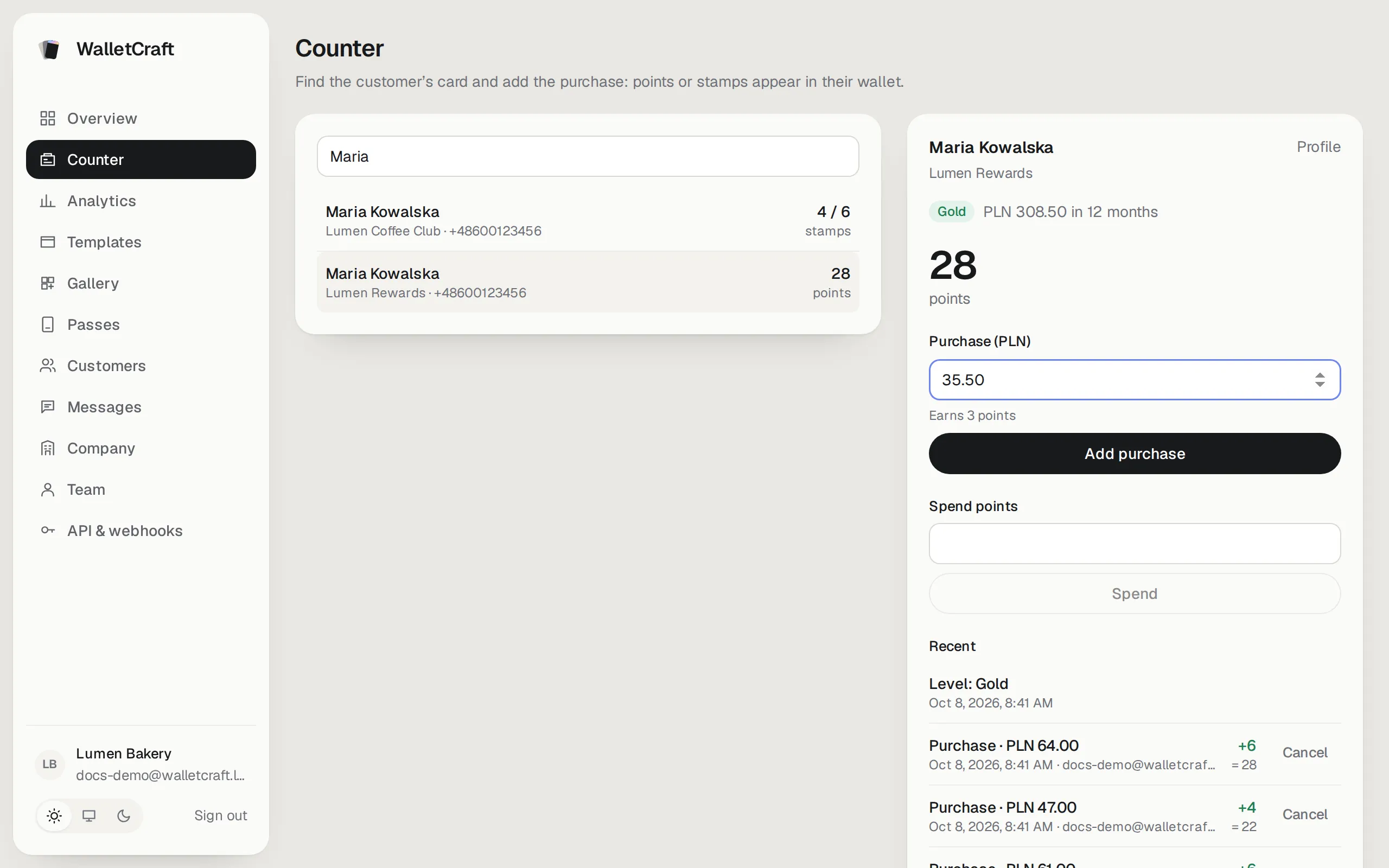
- Type the customer’s phone, name, email or card number. Their cards appear with the balance.
- Choose the card. You see the balance, the level and how much is left to the next level.
- Enter the purchase amount — the screen shows how many points it earns — and press Add purchase.
- To spend points, enter them under Spend points and press Spend.
The card on the customer’s phone updates within seconds. Pressing a button twice by accident doesn’t count twice.
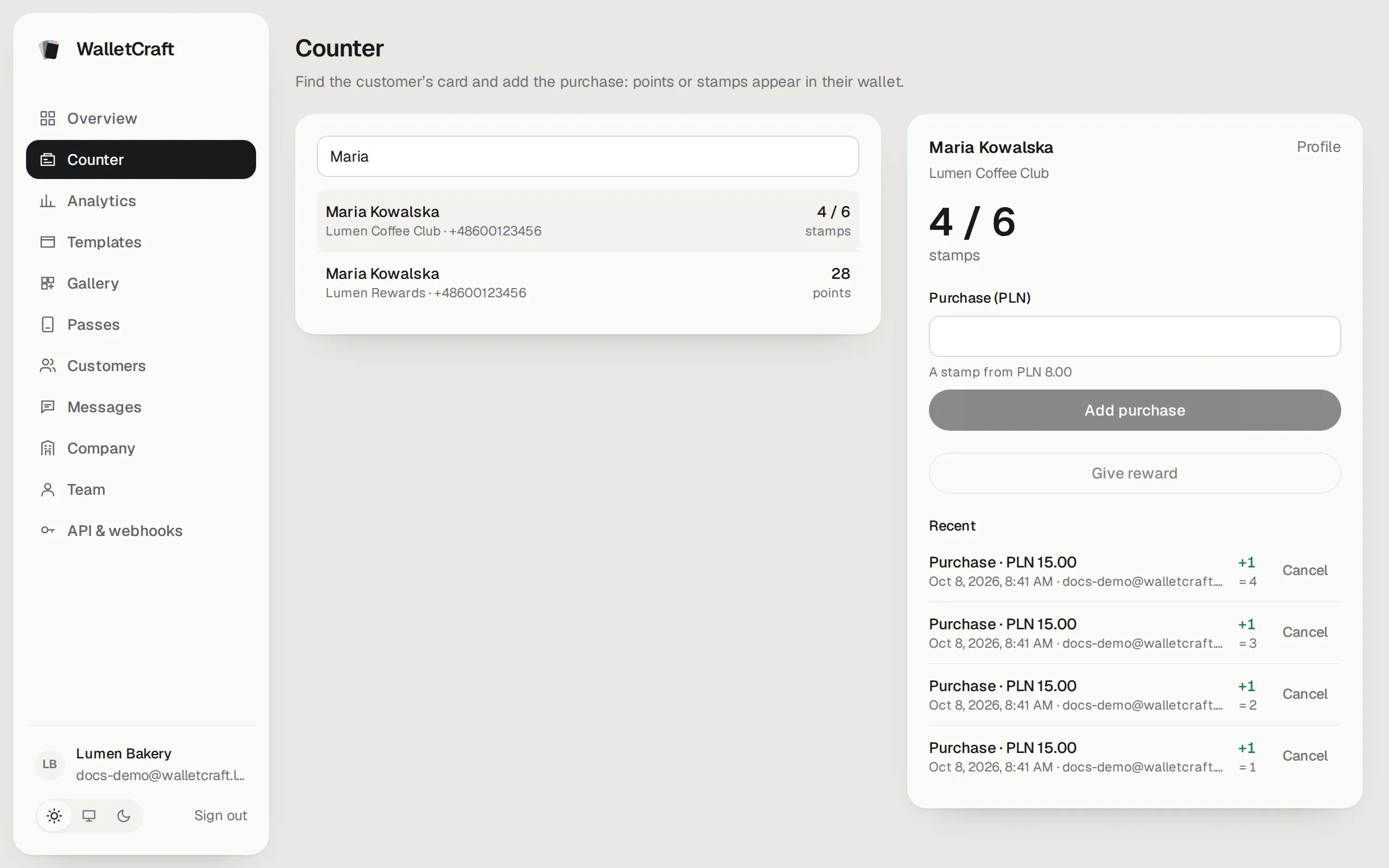
For a stamp card the counter shows the stamps; Give reward becomes active when the reward is ready and starts a new round:
Mistakes and history
Section titled “Mistakes and history”Every operation is kept: purchases, spent points, rewards, corrections and level changes, with who did it and when (Recent at the counter, Purchases and points on the customer’s page).
- Cancel next to an operation reverses it (managers and above). A purchase whose points were already spent can’t be cancelled.
- Nothing is ever deleted — a cancellation is a new line in the history, so the numbers always add up.